
Engine Lab guide
Build and tune a virtual engine on iPhone and iPad.
Start with an engine you can hear and inspect, keep a baseline, and compare one change at a time. This guide walks through Engine Lab’s build, tune, listen, and test workflow.
1. Choose a starting point in the Garage.
Engine Lab is an engine simulator for iPhone and iPad. Start with one of its built-in engines to get familiar with Drive before changing a design. The garage includes the Honda B18C5 VTEC, Honda TRX520 single, BMW M52B28, Toyota 2JZ, Audi 2.3 inline-five, and GM LS V8.
Choose an engine and open Drive. Use the throttle and hold-to-rev control, watch the RPM dial, and listen to how the exhaust sound changes. Tap the engine name on Drive when you want to switch to another engine without leaving the screen.
2. Build a custom engine from a single to a V12.
In the Garage, choose Build a custom engine to open Build Bench. Set the layout, cylinder count, bore, stroke, firing order, and redline. Build Bench supports designs from one to twelve cylinders and lets you hear the engine as you edit.
Keep a saved starting version. Change one setting, hold to rev, and compare it with that starting point. This makes it easier to hear which change affected the sound, rather than trying to explain a whole new setup at once.
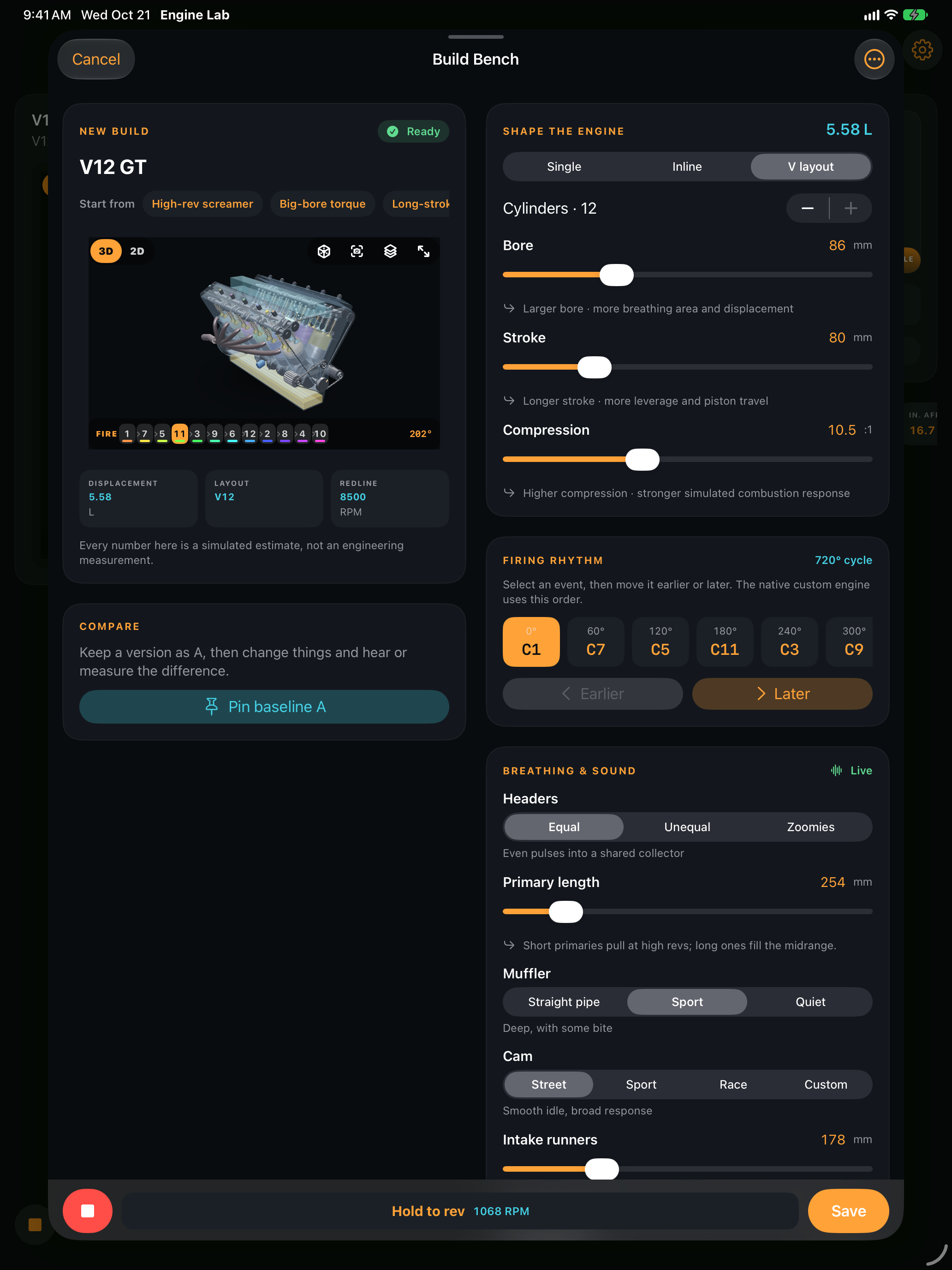
3. Inspect your engine in 3D.
Your custom build becomes a 3D engine driven by the live simulation. Orbit and zoom the view, slow the motion down, and tap parts for live readings. Switch between X-ray and solid views to inspect the moving crank, pistons, cams, and valves. The classic 2D cutaway is also available.
4. Compare the engine sound as you tune.
The native exhaust synthesizer runs with the engine simulation on your device. Use the same engine, throttle position, and listening level when comparing two setups. Try headers, exhausts, and mufflers, then use the saved-version comparison to hear the difference.
Idle speed, rev limit, ignition advance, and cam timing provide more ways to explore a tune. Engine Lab 1.7 adds port fuel injection, custom cams, header and runner lengths, throttle-body settings, and crankshaft types. Advanced tuning is part of the optional Pro purchase.
If you want a sound to share, export a WAV from the on-device simulator. The short Engine Lab demo with Toyota 2JZ sound gives an example of the app’s sound and interface.
5. Compare simulated dyno pulls.
Run a baseline dyno pull and save it before adjusting the engine. Change one setting and repeat the pull, then compare the torque and power curves. In version 1.7 the pulls run on the engine physics, and Live graphs include temperature and fuel for each cylinder.
A sound comparison and a dyno comparison answer different questions: one helps you hear the result, while the other shows how the model’s output changed. Neither certifies a real engine. Treat the values as simulated estimates for learning and repeatable experiments.
6. Try the build against a Challenge brief.
Version 1.7 introduces Challenges: build a car to a brief, run it on the simulated test track, and earn medals. Read the budget and requirements before making changes. A qualifying result can be submitted to its Game Center leaderboard when Game Center is available and you are signed in.
The Vehicle tab puts the engine in a 3D car with a gearbox, driven wheels, tyre slip, and working brakes. Use it to explore the complete simulated drivetrain after experimenting with the engine on its own. Challenges are not offered on the China mainland storefront.
What is free, and what needs Pro?
The free plan keeps three saved builds. An optional one-time Pro purchase unlocks advanced tuning and unlimited saved builds. The App Store listing and in-app purchase screen show the current offering for your storefront.
For the full update details, read what’s new in Engine Lab 1.7.